
Over the past 7 years, I’ve experienced the challenges digital marketers face when running ads for businesses, especially the constant need for fresh and creative Designs to keep campaigns performing well.
Now in 2026 Artificial Intelligence has completely changed the way we create content. Today, you don’t need to be a professional designer to create stunning visuals. With tools like ChatGPT and Canva AI, anyone can generate high-quality images in minutes. Its easy to Generate images using AI.
In fact, many people now prefer to generate images using AI rather than hiring a designer.
By following this guide, you will not only learn how to generate images using AI but also the best practices for creating effective visuals.
In this beginner-friendly guide, you’ll learn how to generate images using ChatGPT and Canva with AI — step by step.
Why Use AI to Generate Images?
Before we jump into the process, let’s understand why AI image generation is so powerful:
- No graphic design skills required
- Saves time and money
- Unlimited creative ideas
- Perfect for social media, blogs, ads, and YouTube thumbnails
- Easy customization
Now, let’s explore the two powerful tools you’ll be using.
Step 1: Generate Image Ideas Using OpenAI’s ChatGPT
ChatGPT is an AI-powered tool that helps you generate ideas, write prompts, and even create detailed image descriptions.
How to Use ChatGPT for Image Prompts
- Open ChatGPT.
- Type a clear instruction like:
- “Create a realistic image prompt for a modern home office setup.”
- “Generate a cinematic Instagram post image idea for a fitness coach.”
- Ask ChatGPT to refine the prompt:
- “Make it more detailed.”
- “Add lighting details.”
- “Make it look like a professional DSLR shot.”
Using ChatGPT and Canva, you can easily generate images using AI to suit your specific needs.
Example Prompt Generated by ChatGPT
“A modern minimalist home office with a wooden desk, laptop, indoor plants, natural sunlight coming from a large window, warm aesthetic, ultra-realistic, 4K resolution.”
The better your prompt, the better your AI-generated image will look.
💡 Pro Tip: Always include details like lighting, camera type, resolution, style (realistic, cartoon, 3D, watercolor), and mood.
Step 2: Generate Images Using Canva AI
Now that you have your prompt ready, it’s time to turn it into a real image using Canva AI.
Canva offers an AI tool called “Text to Image” inside its design platform.
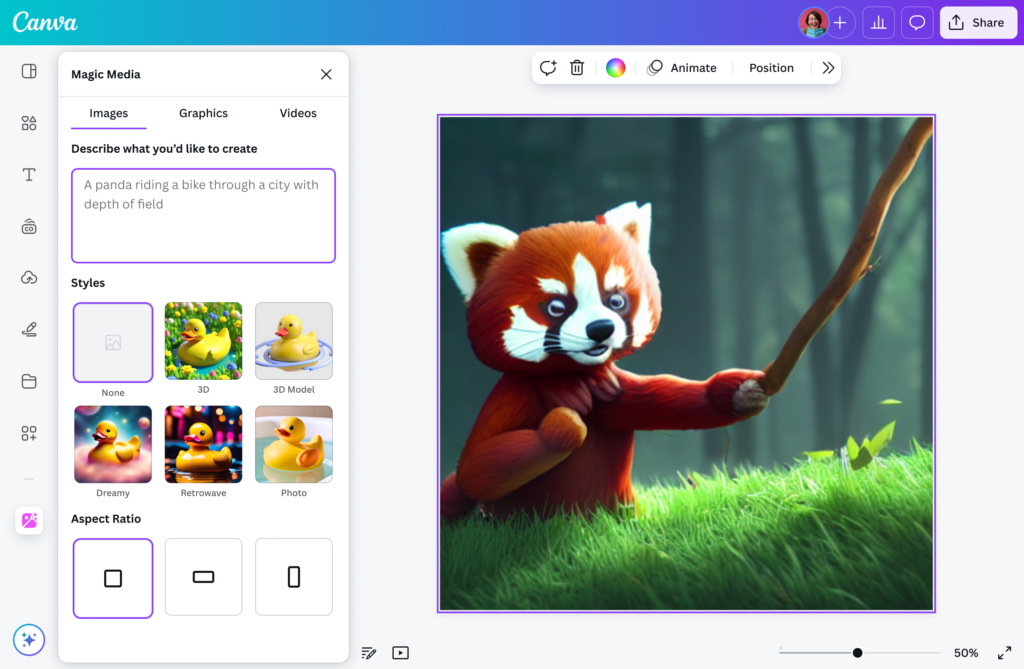
Follow these simple steps:
- Open Canva and log in.
- Click on Create a Design.
- Go to Apps in the left panel.
- Select Text to Image (sometimes called Magic Media).
- Paste the prompt generated from ChatGPT.
- Choose a style (Realistic, Anime, Watercolor, 3D, etc.).
- Click Generate Image.
Within seconds, Canva will generate multiple image options based on your prompt.
Step 3: Customize Your AI-Generated Image
After generating your image, you can enhance it further.
You Can:
- Add text overlays
- Change background
- Adjust brightness and contrast
- Add filters
- Insert elements (icons, shapes, frames)
- Resize for Instagram, YouTube, or blog posts
Canva makes editing extremely easy, even for beginners.
How to Write Better AI Image Prompts
If your images don’t look good, the problem is usually the prompt. Here’s a simple formula:
With these tools, generating images using AI is easier than ever.
Subject + Environment + Style + Lighting + Quality
Example:
Instead of writing:
“A coffee shop”
Write:
“A cozy aesthetic coffee shop interior with wooden tables, warm lighting, plants near the window, cinematic photography, ultra-realistic, 4K quality.”
See the difference? More details = Better image.
Make sure to refine your prompt to effectively generate images using AI that meet your expectations.
Using ChatGPT + Canva Together (Smart Workflow)
Here’s the perfect workflow for content creators:
- Use ChatGPT to:
- Generate image ideas
- Create detailed prompts
- Suggest design styles
- Create captions for the image
- Use Canva AI to:
- Generate the image
- Edit and customize
- Add branding
- Download in high resolution
After you generate images using AI, you can customize them according to your brand’s needs.
This combination saves hours of manual design work.
Best Use Cases for AI-Generated Images
You can use ChatGPT and Canva AI for:
- Instagram posts and reels covers
- YouTube thumbnails
- Blog featured images
- Facebook ads creatives
- Website banners
- Digital product mockups
- Pinterest pins
If you’re a content creator, digital marketer, student, or business owner, this method is a game-changer.
Common Mistakes to Avoid
Here are some beginner mistakes:
❌ Writing very short prompts
❌ Not specifying image style
❌ Ignoring lighting details
❌ Overcrowding design with too many elements
❌ Using low-resolution downloads
Always download your images in high quality for professional results.
To enhance your results, always remember to generate images using AI with detailed descriptions.
Is Canva AI Free?
Canva offers both free and paid plans. Some AI features may require Canva Pro, but limited image generations are often available in the free version.
If you plan to use AI regularly for content creation, upgrading to Pro can be worth it.
Final Thoughts
Generating images using ChatGPT and Canva with AI is simple, fast, and powerful. You don’t need expensive software or professional skills anymore. You can Generate images using AI easily.
Just remember:
- Write detailed prompts using ChatGPT
- Use Canva’s Text-to-Image tool
- Customize your design
- Download in high quality
Once you practice this workflow, you’ll be able to create professional-looking visuals in minutes.
AI is not replacing creativity — it’s enhancing it. 🚀
Frequently Asked Questions (FAQs)
1. Can I generate images directly inside ChatGPT?
Yes, depending on the version you’re using, ChatGPT can generate images. However, many users prefer generating prompts in ChatGPT and designing in Canva for better customization.
2. Is Canva AI good for beginners?
Yes! Canva AI is very beginner-friendly and requires no graphic design experience.
3. What is the best prompt style for AI image generation?
Detailed prompts with lighting, style, and resolution give the best results.
4. Can I use AI-generated images for commercial use?
Check Canva’s licensing terms. Generally, images created using Canva AI can be used commercially, but always review their latest policy.
5. Which is better: ChatGPT or Canva for image creation?
They work best together. ChatGPT helps create detailed prompts, while Canva converts them into beautiful visuals.
When you generate images using AI, you’re maximizing your creative potential without breaking the bank.
Canva, in conjunction with AI technology, allows you to generate images using AI effortlessly.
To avoid common pitfalls, ensure that you generate images using AI with clarity and precision.
Whether you’re creating marketing materials or social media posts, generating images using AI is a game-changer.
Generating images using AI can be the key to standing out in a crowded digital landscape.
Remember that the ability to generate images using AI opens up new avenues for creativity and expression.
Using AI, you can now generate images using AI that are tailored to your audience’s preferences.
The evolution of technology allows you to generate images using AI that were once only possible through traditional methods.
Also read our guide on Google Pomelli – A Free AI Tool for Marketers to learn how marketers can use Google’s AI capabilities to generate ideas, content, and marketing insights faster.

Pingback: Free Ai Tool For Marketers | Google Pomelli